Cisco AI Business Practitioner (AIBIZ)
I have completed this course and earned 8 CE credits from Cisco.
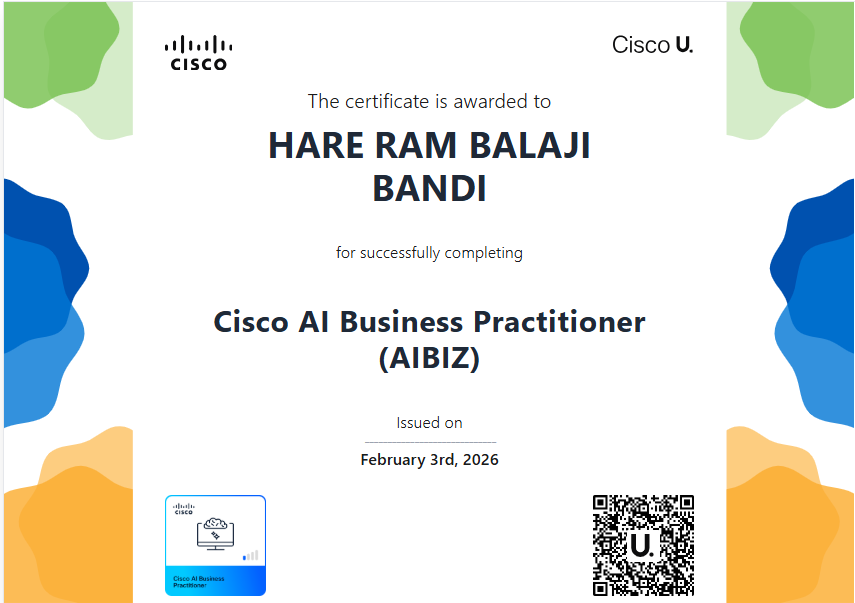
The Cisco AI Business Practitioner (AIBIZ) learning path is a strategic training program designed specifically for non-technical leaders and managers. Unlike traditional deep-tech certifications, AIBIZ bridges the “AI literacy gap” by focusing on the operational, ethical, and strategic frameworks required to move from curiosity to organizational capability.
Core Learning Objectives
The curriculum is structured to transform professionals into AI Champions through four primary pillars:
- Strategic AI Literacy: Grasping the core mechanics of LLMs, diffusion models, and multimodality to understand business possibilities.
- Prompt & Context Engineering: Mastering the art of guiding AI toward specific business objectives while ensuring accuracy and relevance.
- Responsible AI Governance: Identifying algorithmic bias, managing data privacy regulations, and protecting sensitive information.
- Organizational Integration: Designing implementation roadmaps and building compelling business cases for AI adoption.
Technical Breakdown & Course Structure
The Cisco AIBIZ Learning Path consists of approximately 16 hours of guided learning delivered through Cisco U.:
- 12 Self-Paced Courses: Modules cover everything from first steps with Generative AI to advanced organizational change management.
- 9 Hands-On Labs: Learners gain practical experience with AI-powered content creation, data analysis, and secure API integration.
- Applied Domains: Real-world use cases are explored across marketing, customer support, and strategic decision-making.
Business Impact & Credentials
The program prioritizes ROI and operational excellence by teaching leaders how to evaluate AI platforms based on performance, security, and economic factors.
- Credentialing: Upon successful completion of the learning path, participants earn a Cisco AIBIZ digital badge (via Credly) to validate their strategic AI skills.
- Cost: Cisco currently offers the first track for free, with the full path available at an introductory price (e.g., $75) for a limited time.
Role in Cisco’s AI Portfolio
AIBIZ serves as the “leadership foundation” within a broader three-tier ecosystem:
- AIBIZ: For business professionals focusing on strategy and adoption.
- AITECH (AI Technical Practitioner): For engineers designing and deploying automated AI solutions.
- DCAIE: For infrastructure specialists managing high-density AI data center workloads.
How you’ll benefit from this Course :
- Understand key Generative AI tools, including Large Language Models (LLMs), Diffusion Models, and tools for audio/code generation, along with their capabilities and limitations
- Select, evaluate, and utilize prominent AI platforms, chatbots, image generators, and research tools, considering performance, security, compliance, and economic factors
- Craft clear, contextual, and persona-based prompts, employ iterative refinement, and utilize advanced techniques for complex tasks to guide AI towards specific business goals
- Create and refine professional textual content (emails, reports), visual content (graphics, marketing images), and audio content (voiceovers) using AI tools
- Identify and mitigate algorithmic bias, understand data privacy regulations, protect sensitive information, and establish responsible AI use policies within teams
- Detect hallucinations, factual errors, and biases in AI-generated outputs, and apply strategies for correction, refinement, and when to regenerate content
- Utilize AI for exploratory data analysis, generate visualizations, identify patterns, formulate hypotheses, synthesize information, and structure research content
- Grasp core API concepts, their role in AI systems, security principles (authentication, key management), and cost management for integrating AI functionalities
- SummaDevelop personal AI integration roadmaps, identify high-value AI use cases, manage change, design pilot projects, establish best practices, and champion AI innovation within their organizations
Happy Labinggggggggggggg!