FMC and FTD External authentication with Cisco ISE(Using Microsoft Active Directory as the Backend)
Part of CCIE Sec Lab Learning – Additional like to add FMC external Authentication testing.
Centralized authentication is one of those things that feels “optional” until the day it absolutely isn’t. Local FMC users scattered across environments don’t scale, don’t audit well, and don’t survive staff turnover gracefully.
This post walks through a clean, enterprise-grade design for authenticating Cisco FMC and FTD administrators via Cisco ISE, with Microsoft Active Directory as the identity source.
Why Use ISE for FMC / FTD Authentication?
At first glance, FMC can authenticate directly against AD or LDAP. So why put ISE in the middle?
Because ISE gives you:
- Centralized policy control (who gets access, and how)
- Consistent authentication logic across network, VPN, firewall, and admin access
- Role-based access control mapped cleanly to FMC roles
- AAA auditing in one place
- Flexibility to later add MFA, posture, or certificate-based auth
Think of ISE as the policy brain, and AD as the identity store.
Lab Topology :
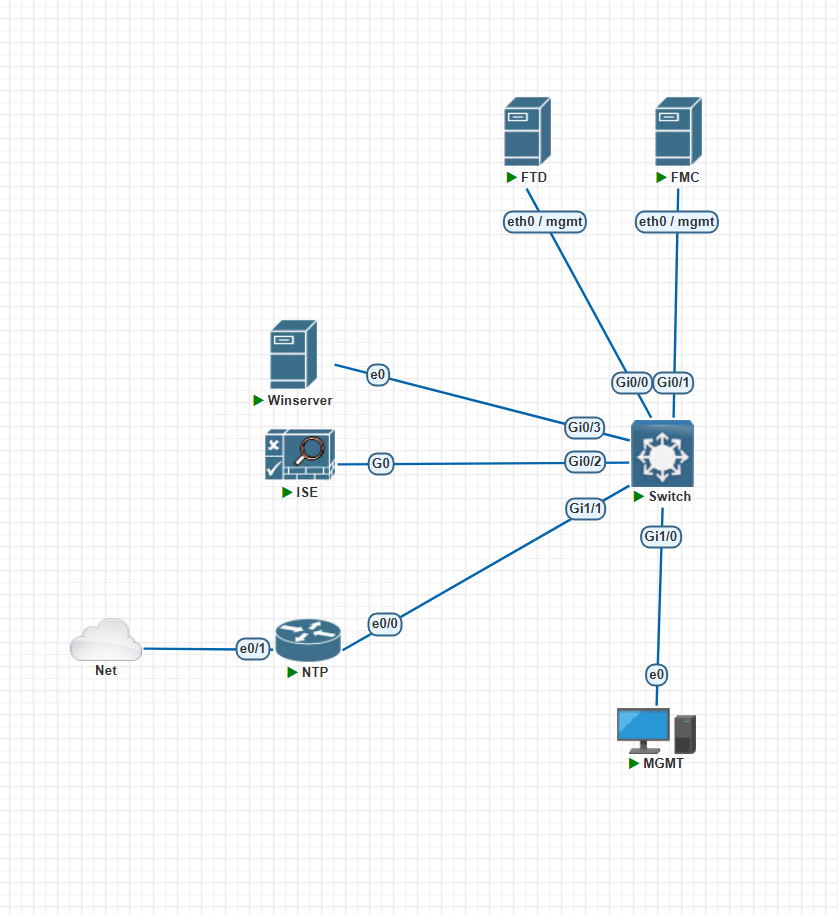
Pre-Requisites :
Infrastructure
- Cisco FMC (virtual) / FTD (Virtual) – using here 7.7 Latest Version
- Cisco ISE (3.x)
- Microsoft Active Directory domain (using Windows 2019)
- Time synchronization (NTP) across all systems (i am using IOL for NTP – get External from Public NTP)
Connectivity
- FTD register (or Managed) with FMC
- FMC ↔ ISE: RADIUS (UDP 1812/1813)
- ISE ↔ AD: LDAP / Kerberos
- DNS resolution working everywhere
Accounts
- AD admin account (for ISE AD join)
- FMC admin access (local for setting external Authentication)
- ISE admin access (Local Account to Manage IS)
- AD Accounts for FMC GUI and CLI / FTD cli (Admin Account and Read Only account)
Integrate ISE with Active Directory
On Cisco ISE:
- Navigate to
Administration → Identity Management → External Identity Sources → Active Directory - Join ISE to the domain
- Verify:
- User authentication works
- AD groups are visible
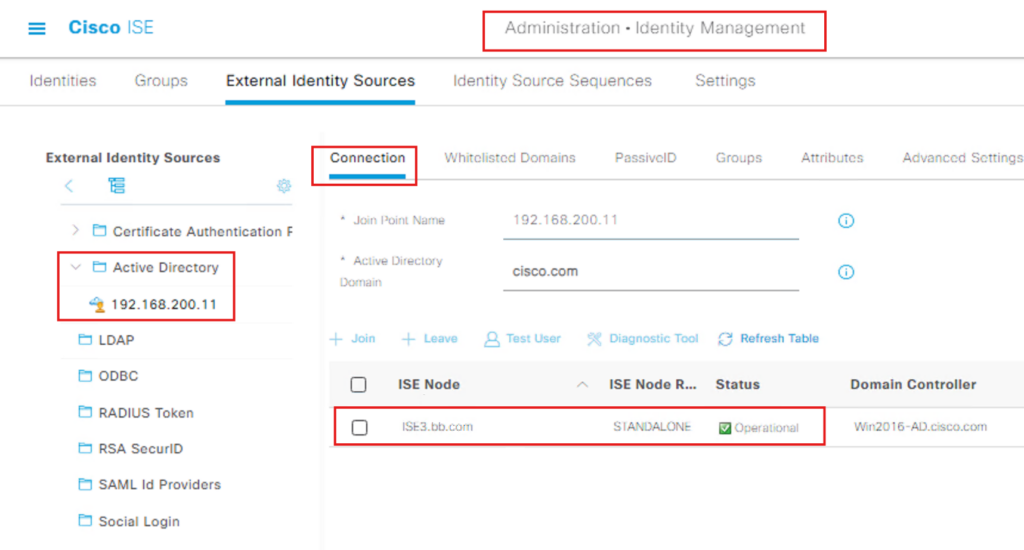
We need to get AD Groups for Admin and Read only Users :
- Import External Groups
Before you can write a policy, ISE needs to “know” about the specific groups in your AD.
Navigate to Administration > Identity Management > External Identity Sources.
Select Active Directory and choose your Join Point.
Click the Groups tab.
Click Add > Select Groups from Directory.
Click Retrieve Groups.
Check the boxes for the groups you want to use (e.g., FMCadmin and FMCuser) and click OK.
Save the configuration.
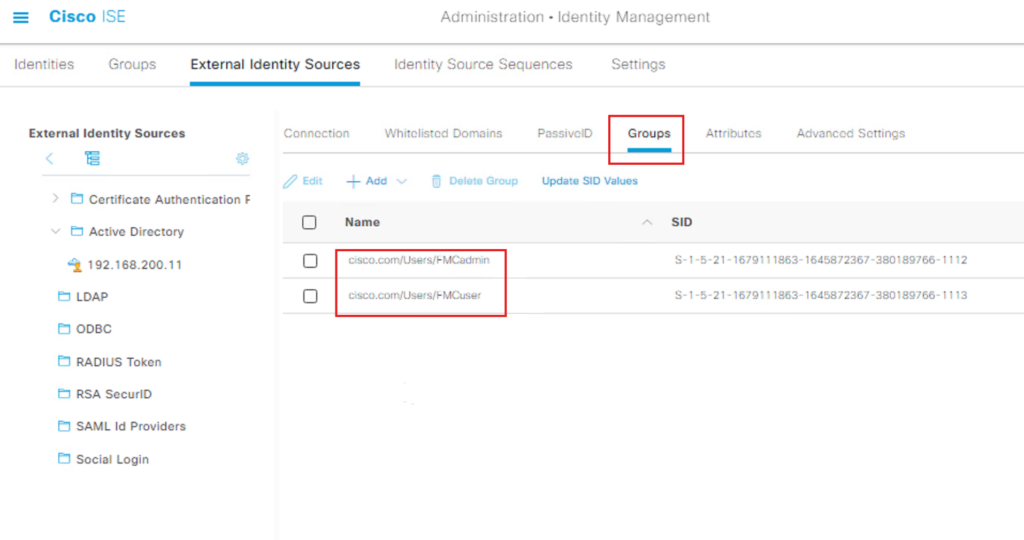
- Configure the Authorization Policy
Now that the groups are imported, you can reference them in your Policy Set.
Navigate to Policy > Policy Sets.
Select the Policy Set (in this example – FMC and FTD Access) click on >
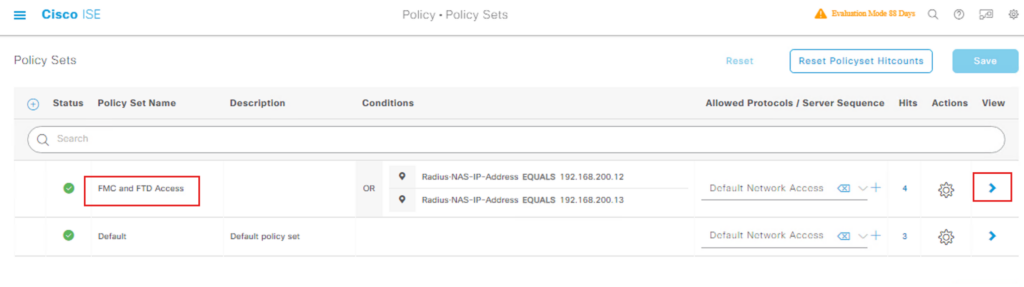
Open the Authorization Policy section.
Click the + icon to create a new rule.
In the Conditions column, click the + to open the Condition Studio.
Click Create New Condition.
Select the Attribute Selector (the icon that looks like a folder/dictionary).
Choose your AD Join Point (e.g., MyAD:ExternalGroups).
Select the Equals operator and choose the group imported.
Click Use.
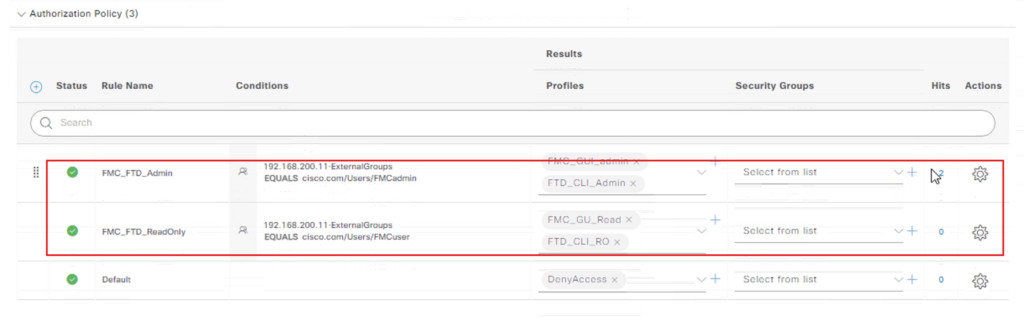
Assign the appropriate Profiles (e.g., PermitAccess) and Security Groups (SGTs).
Save the policy.
Now we configured FMC side to use ISE for External authentication.
Click Settings –> USers
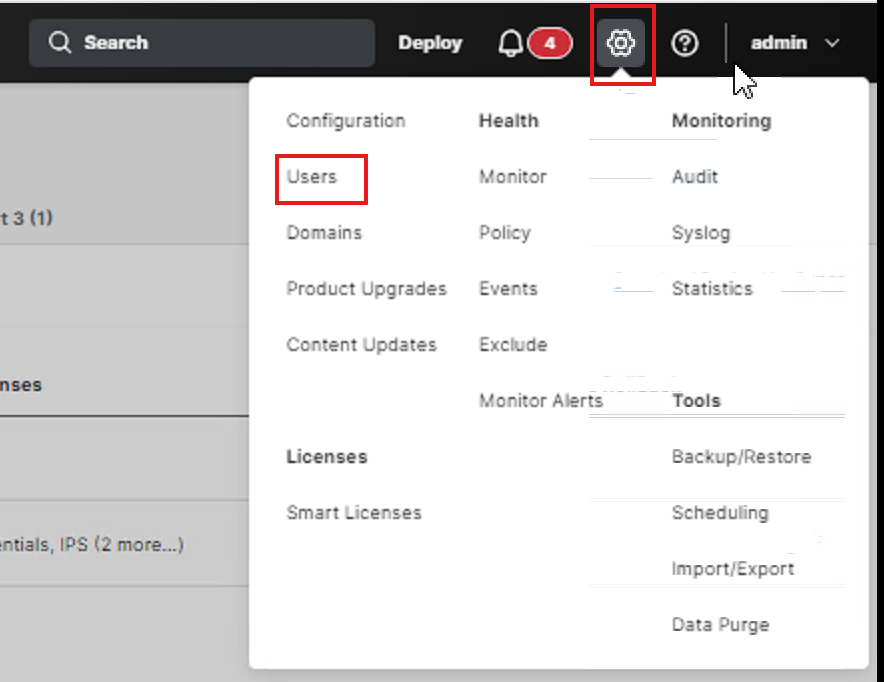
Click External Authentication :

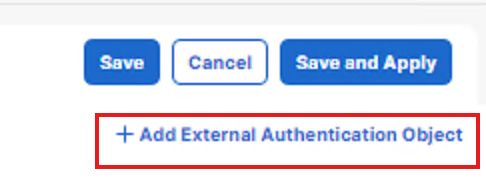
Click Add External Authentication Objects
Key parts of the configuration to work :
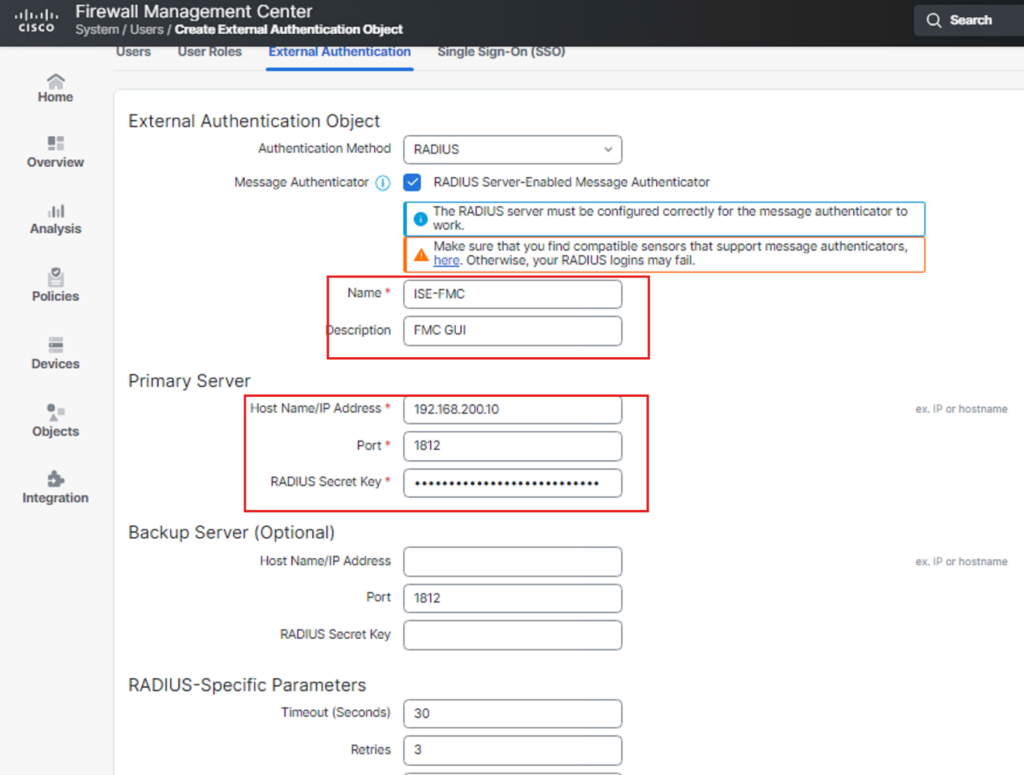
Part2 :
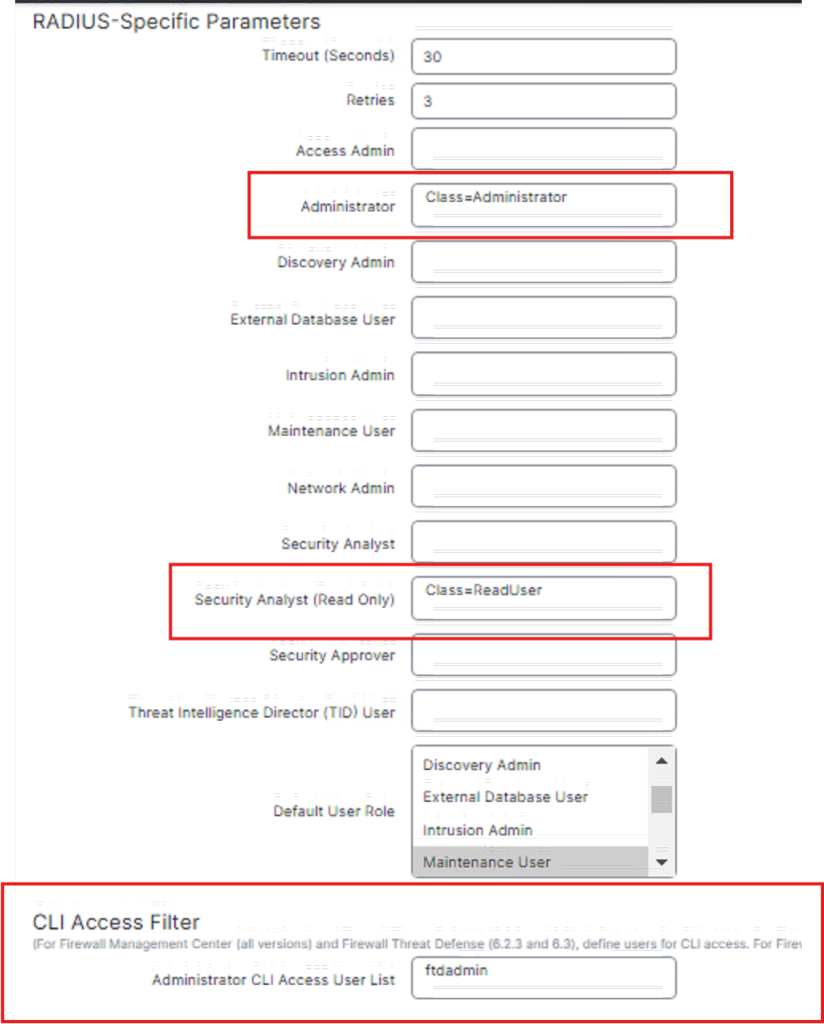
before save we can do some testing with users from AD with password


we will test ReadUser from AD Group

Click Save
Now we enable External Authentication and test it.
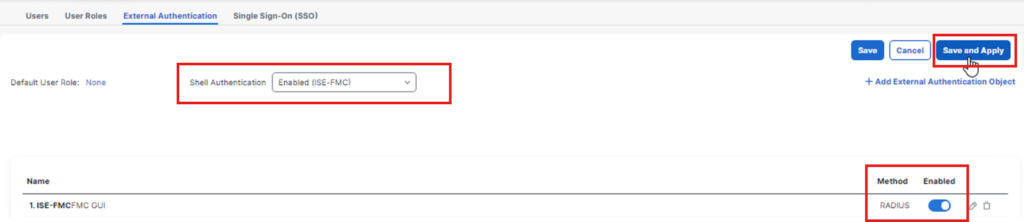
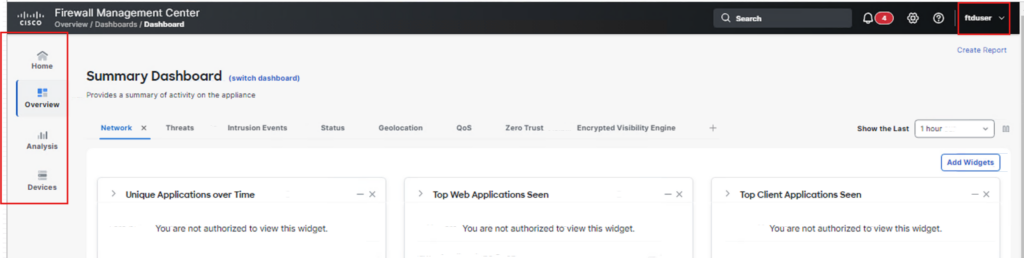
Logout from Admin and test using Admin and Readuser account.
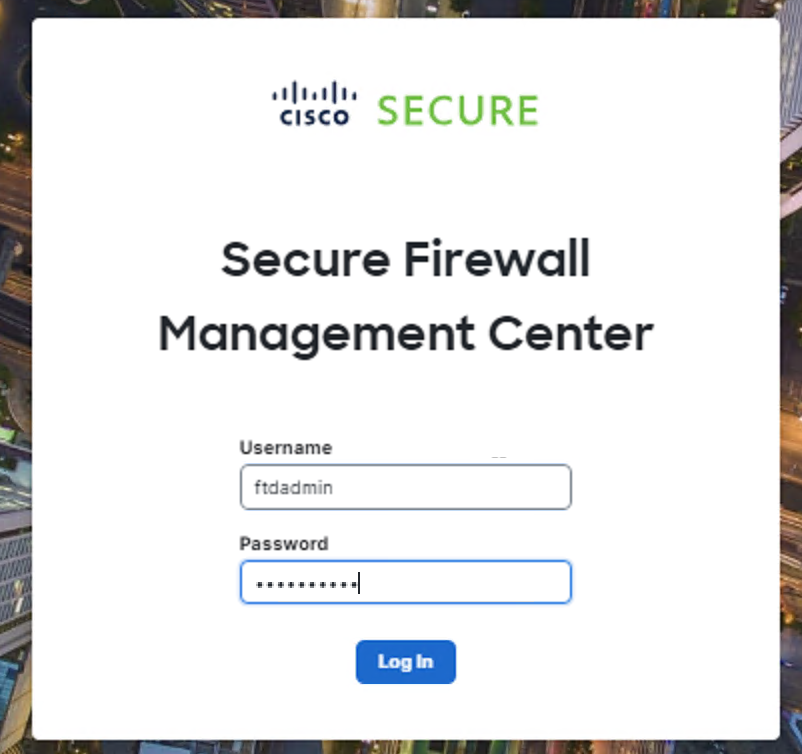

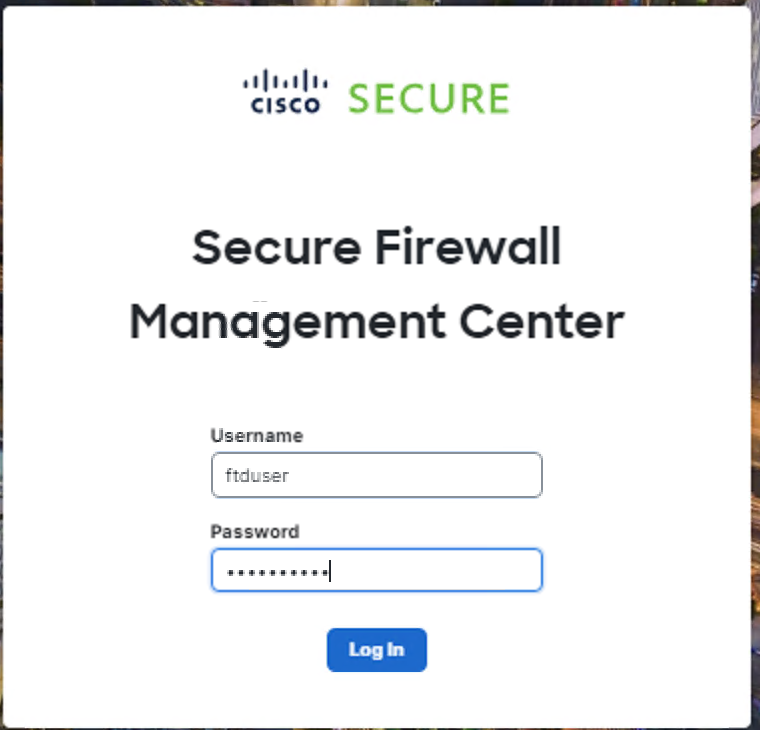
You only see less menu compare to admin as below :
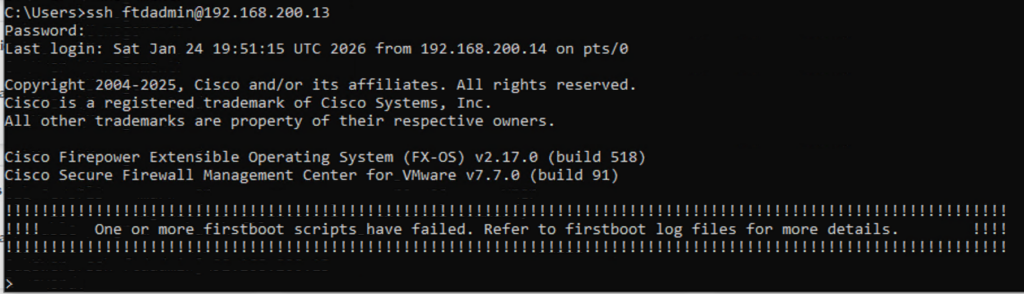
Now we test SSH connection to FTD and FMC
FMC Cli Access for ftdadmin user
FTD cli access
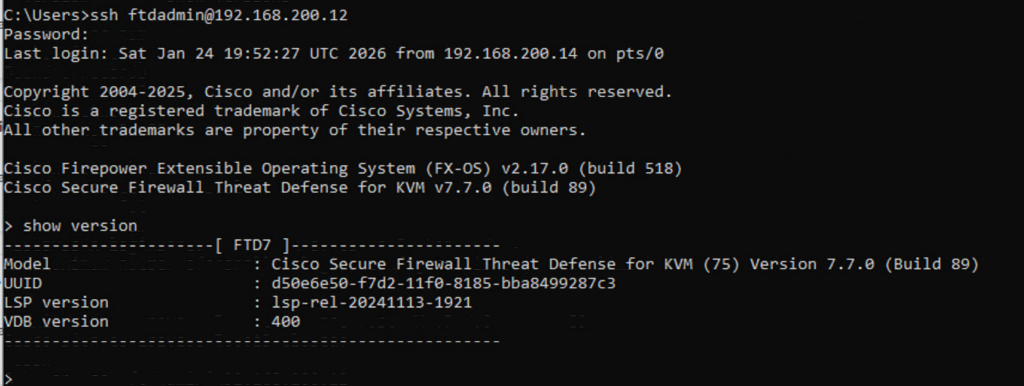
Verify the user (you can notice auth remote)

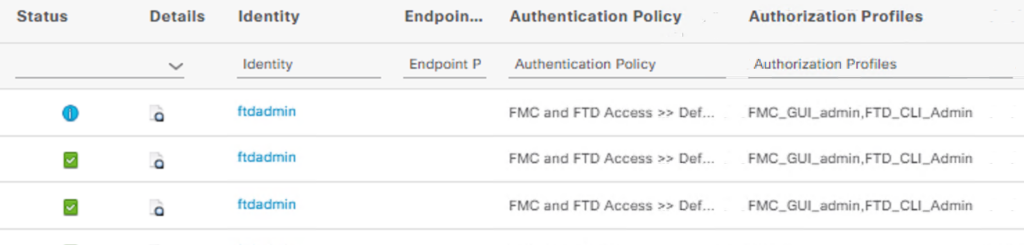
In the ISE Radius Live Logs you can see the success logs :
Happy Labingggggggggggggggggggggg!