99 Days to CCIE SEC v6.1 Lab
Cisco ASA Active/Standby
Cisco ASA Active/Standby failover ensures your network remains operational even if a hardware failure occurs. In this setup, one ASA is Active (passing traffic), while the Standby monitors the health of the active unit.
1. Prerequisites
Hardware Requirements
- Identical Models: Both units must be the same model (e.g., two ASA 5516-X or two Firepower 2100s).
- Identical Interface Modules: If you use expansion modules, both must be identical.
- Physical Connectivity: You need a dedicated cable for the Failover Link (directly or via a VLAN).
Software & License Requirements
- Identical Software: Both units must run the same firmware version (e.g., ASA 9.18).
- License Parity: Both units must have the same license tier (Standard, Security Plus, or Premium).
- Operating Mode: Both units must be in the same mode (Single vs. Multi-context) and (Routed vs. Transparent).
2. Switch Configuration (The Infrastructure)
For failover to work, the switches connected to the ASA must be configured to bridge the “Outside” and “Inside” segments across both units.
Outside Switch Configuration :
Both ASA “Outside” interfaces must reside in the same VLAN.
interface GigabitEthernet1/0/1
 description ASA-Primary-Outside
 switchport access vlan 10
 switchport mode access
 spanning-tree portfast

interface GigabitEthernet1/0/2
 description ASA-Secondary-Outside
 switchport access vlan 10
 switchport mode access
 spanning-tree portfast

Inside Switch Configuration
interface GigabitEthernet1/0/3
description ASA-Primary-Inside
switchport access vlan 20
switchport mode access
spanning-tree portfast
interface GigabitEthernet1/0/4
description ASA-Secondary-Inside
switchport access vlan 20
switchport mode access
spanning-tree portfastNote: Ensure spanning-tree portfast is enabled to prevent millisecond delays during failover that could cause session drops.
3. Step-by-Step ASA Deployment
Step 3.1: Configure the Primary (Active) Unit
Define the failover interface and the primary role.
failover lan unit primary
failover lan interface FAIL-OVER GigabitEthernet0/2
failover interface ip FAIL-OVER 192.168.100.1 255.255.255.252 standby 192.168.100.2
failover link FAIL-OVER GigabitEthernet0/2
failover
Step 3.2: Configure the Secondary (Standby) Unit
You only need minimal config; the secondary will pull the rest from the primary.
failover lan unit secondary
failover lan interface FAIL-OVER GigabitEthernet0/2
failover interface ip FAIL-OVER 192.168.100.1 255.255.255.252 standby 192.168.100.2
failover

Note: The failover link cannot be used for anything else except for the state link
Step 3.3: Configure Data Interfaces (On Primary Only) – this automatically syncs with the standby unit.
In HA, you assign both an active and a standby IP to each interface.
interface GigabitEthernet0/0
 nameif outside
 security-level 0
 ip address 192.168.200.1 255.255.255.0 standby 192.168.200.2

interface GigabitEthernet0/1
 nameif inside
 security-level 100
 ip address 10.1.1.1 255.255.255.0 standby 10.1.1.2

4. Interface Monitoring for Failover condition.

In a Cisco ASA Active/Standby setup, Interface Monitoring is the mechanism that triggers a failover when a physical link or logical interface fails. By default, the ASA monitors the physical status of all interfaces, but you must manually configure which ones should trigger a failover.

How it Works

The Check: If a monitored interface on the Active unit goes down (Line Protocol: Down), the ASA waits for the configured holdtime.
The Failover: If the same interface is Up on the Standby unit, a failover occurs to restore traffic flow.
The Exception: If the interface is down on both units, no failover occurs because switching units wouldn't solve the connectivity issue.

Configuration :

monitor-interface inside
monitor-interface outside

Advanced Improvements

By default, the ASA fails over if any single monitored interface fails. In complex environments, you might want to wait until multiple interfaces fail:
# Failover only if at least 2 monitored interfaces are down
failover interface-policy 2

# Failover only if 50% of monitored interfaces are down
failover interface-policy 50%


Speeding Up Detection (Poll Timers)

# Check peer every 1 second, fail after 3 seconds of no response
failover polltime unit 1 holdtime 3

# Check specific interfaces every 500ms
failover polltime interface 500ms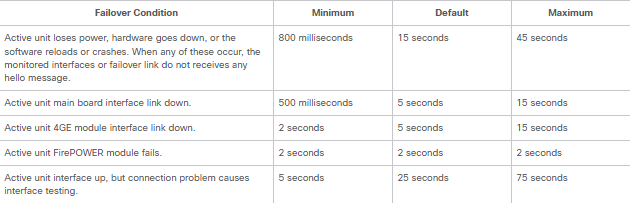
5. Monitoring Failover
To check the status of your cluster, use the following commands:
show failover: Displays the current role (Active/Standby), the health of the peer, and the last failover reason.show failover state: A concise view of both units’ status.show failover history: Useful for troubleshooting intermittent reboots or link flaps.
6. Testing the Failover
Never assume it works—test it.
- Command Line Trigger: Run
failover activeon the Standby unit. It should transition to “Active” immediately. - Physical Trigger: Unplug the “Inside” cable from the Active ASA. The unit should detect an interface failure and trigger a switchover.
- Observation: During the test, run a continuous ping (
ping -t) to a destination through the ASA. You should see no more than 1–2 dropped packets.
Ensure you use HTTP/Stateful Replication (failover link). Without stateful failover, all active user connections (like VPNs or SSH sessions) will drop and require re-authentication during a failover event. Enable it with:failover replication http
7. Troubleshooting Commands
Use these commands to verify if your interfaces are being monitored correctly:
show failover | include Monitored: Shows which interfaces are currently being watched and their status on both units.show monitor-interface: Provides a detailed view of the health and “Internal” vs “External” state of each monitored link.debug fover switch: Use this (carefully) to see the exact logic the ASA uses when deciding to switch roles based on an interface failure. Cisco ASA Failover Guide https://www.cisco.com/c/en/us/td/docs/security/asa/asa98/configuration/general/asa-98-general-config/ha-failover.html#ID-2107-00000185
Happy Labingggggggggggggggggggggggggggggggg!